
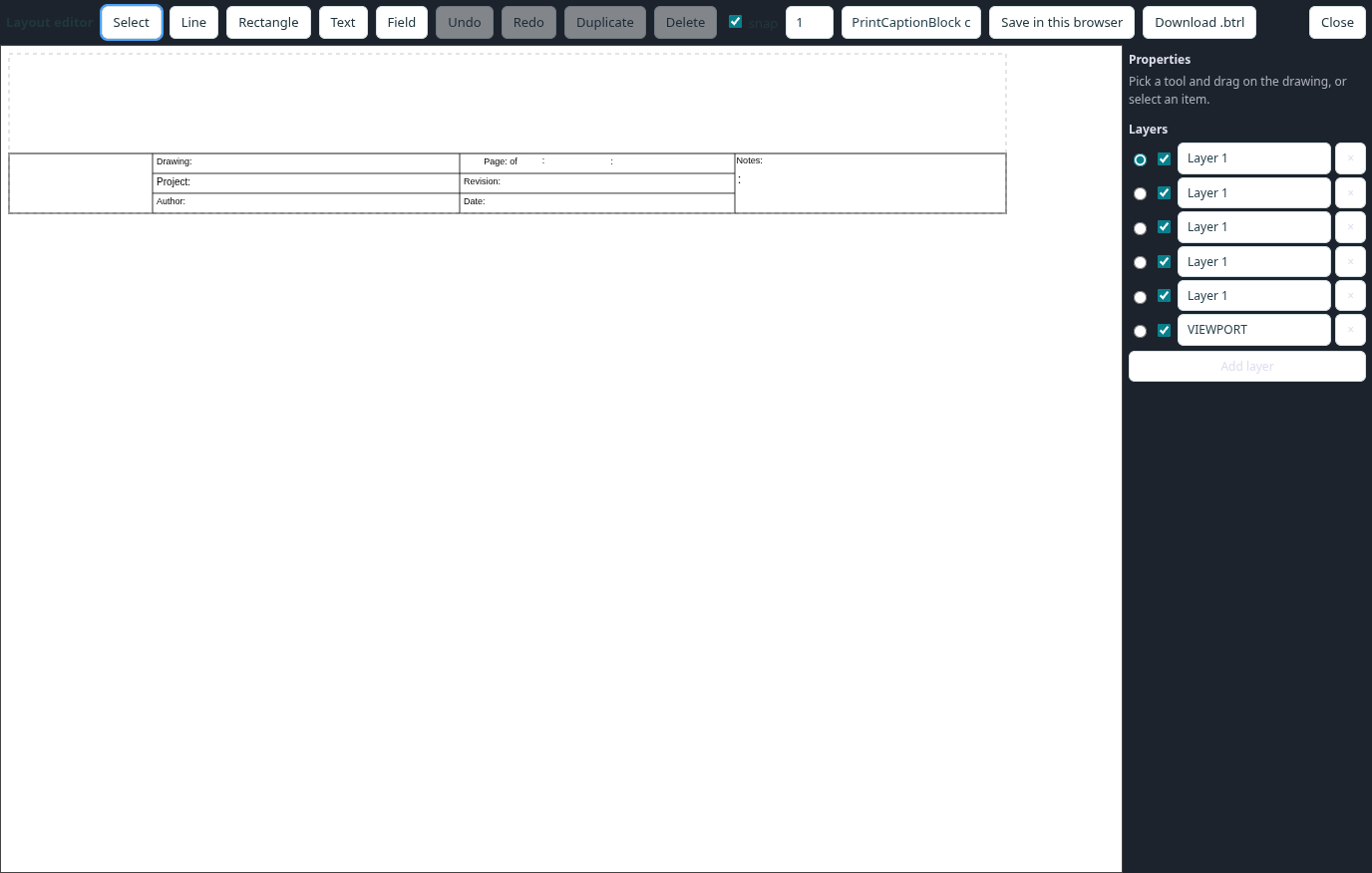
Open Layout editor in the report window to draw a caption block. Choose a tool (line, rectangle, text or field), then drag on the drawing. A field shows a value from the workspace, such as ProjectName or Author, and can show a caption before it. Select an item to change its position, colours, text and scale; use the arrow keys to nudge it, Duplicate to copy it and Delete to remove it. Layers can be added, hidden, renamed and removed, and new items go on the layer chosen with its radio button. Snap rounds positions to the step you set.
Save in this browser adds the layout to the caption-block list. Download .btrl writes a layout file, which needs a subscription. Positions are in millimetres with y pointing up. A layout with an empty field name, a zero-length line or an item with no area is refused until you fix it.
Other topics
- Probe and wedge
- Beamsets
- Part and weld
- Calibration blocks
- Custom parts
- Indications
- Pressure map, delay view and wave animation
- Wedge designer
- Zonal coverage
- Reports
- Files and exports
- Workspace files
- Results pane
- Focal laws
- Focus types
- Near field
- Beam spread
- Weld editor
- Zone naming
- Pipes and curved parts
- Calibration templates
- Drawing editor basics
- Snaps
- Layers
- Trim and extend
- Part templates
- Quality maps
- Full-matrix capture and A-scans
- Time-of-flight diffraction
- High-temperature wedges
- Drawing export
- Probe, wedge and transducer files
- View controls
- Options
- Units
- Report templates
- Layout editor
- Word export
- Accounts and access
- Keyboard shortcuts
- Transducer fields
- Indication types
- Warnings
- Technician guide: from part to plan